
AI image generator
Create images from text prompts with Ecency's AI image generator and insert them into your posts, paid with Ecency Points.
The AI image generator turns a short text description into an image you can use in your posts. Each image is paid with Ecency Points and you need to be logged in.
Where to find it
Section titled “Where to find it”- Web: go to Perks and open AI Image Generator, or visit ecency.com/perks/ai-generator. You can also open it from the post editor toolbar with the AI Image button, which lets you insert the result straight into your post.
- Mobile: in the post editor, tap the image button with the small AI badge. You can also reach it from the Points screen.
Create an image
Section titled “Create an image”- Under Describe the image you want to create, write your prompt. For example: “A beautiful sunset over mountains with purple clouds”. Prompts can be up to 1,000 characters. When you open the generator from the editor, it may offer a suggested prompt based on your post (Use: …).
- Pick an Aspect ratio: 1:1, 16:9, 9:16, 4:3, 3:4, 3:2 or 2:3.
- Pick a Quality boost level: 1x, 2x, 4x or 6x. Higher levels use more capable image models and cost more.
- Check the Cost against your Balance, then click Generate Image.
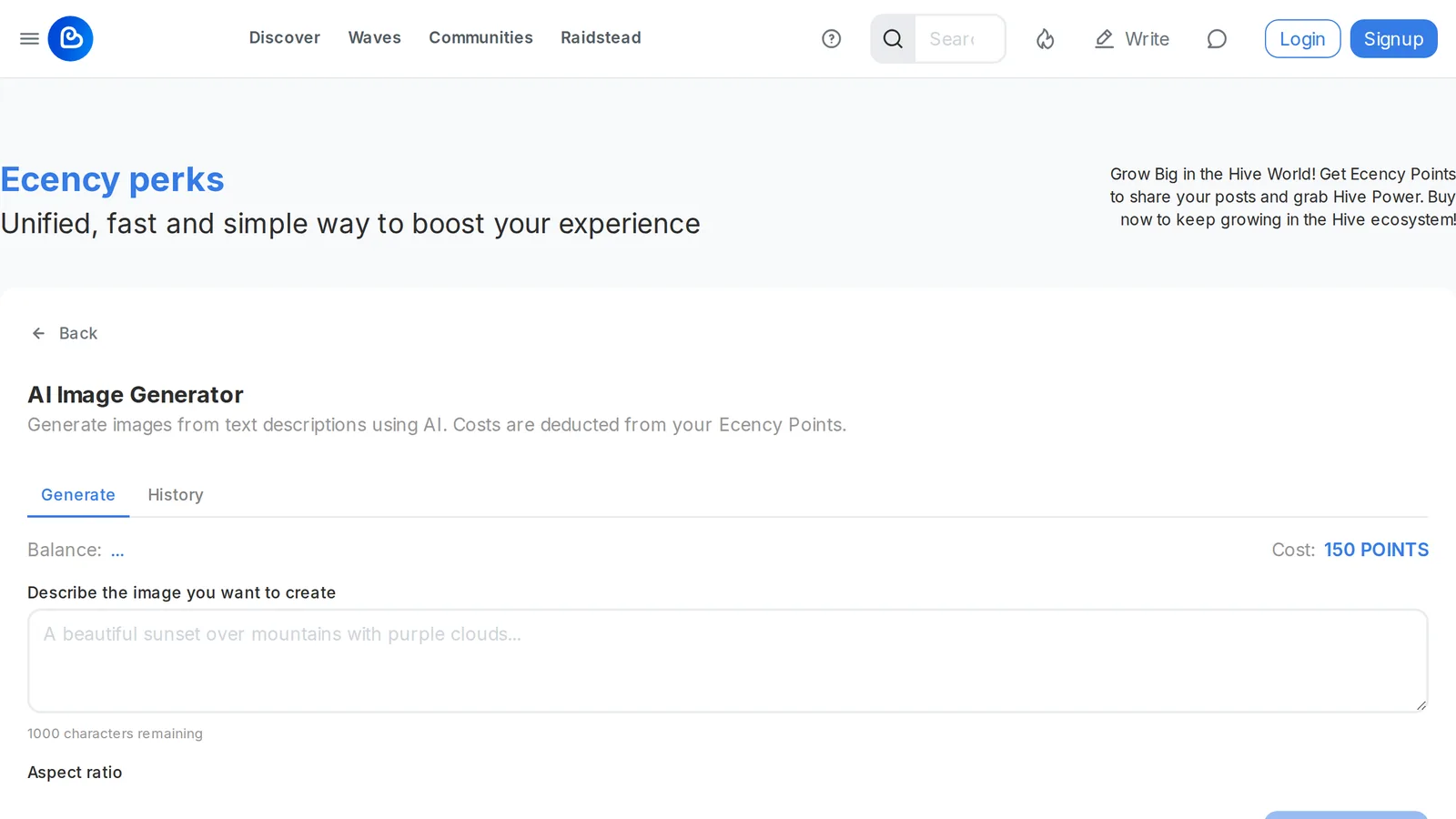
Generation can take a little while. If the image is ready but still finishing its upload, the generator fetches it for you without charging again.
The price depends on the quality level. At the time of writing a 1x image costs 150 Points. Each level multiplies that:
| Quality boost | Cost |
|---|---|
| 1x | 150 Points |
| 2x | 300 Points |
| 4x | 600 Points |
| 6x | 900 Points |
All aspect ratios cost the same. The generator always shows the current cost before you generate.
Ecency Pro members get one free 1x image per day (the day resets at midnight UTC). Higher quality levels are never free.
If generation fails, your Points are refunded. If your prompt is rejected by the content policy, the Points are not refunded, so keep prompts within the rules.
Use your image
Section titled “Use your image”When the image is ready you can:
- Insert into post: adds the image to the post you are writing (when you opened the generator from the editor).
- Download the image.
- Share it (mobile).
- Generate Again with the same or a changed prompt.
On the web, each new image is also added to your Ecency image gallery. The History tab lists your recent generations so you can insert or download them later.
Disclose AI images
Section titled “Disclose AI images”When you insert a generated image into a post, Ecency ticks AI-generated media in the post’s AI usage disclosure for you. Readers then see a small AI usage disclosed by author badge. You can review this setting before publishing. See AI writing assistant for details.