
Manage your keys
View your Hive keys, add a new key set, revoke old keys and remove app permissions from the Permissions page on Ecency.
The Permissions page on Ecency shows the keys on your Hive account and the apps that can post for you. From there you can reveal your private keys, add a new key set, revoke keys you no longer use, revoke app permissions and change your recovery account.
If you are new to keys, read Hive accounts and keys first.
Open the Permissions page
Section titled “Open the Permissions page”- Log in on ecency.com.
- Open Settings from the side menu.
- In the Keys & permissions card, click Open permissions.
You can also go straight to ecency.com/@yourname/permissions. You can only open this page for the account you are logged in with.
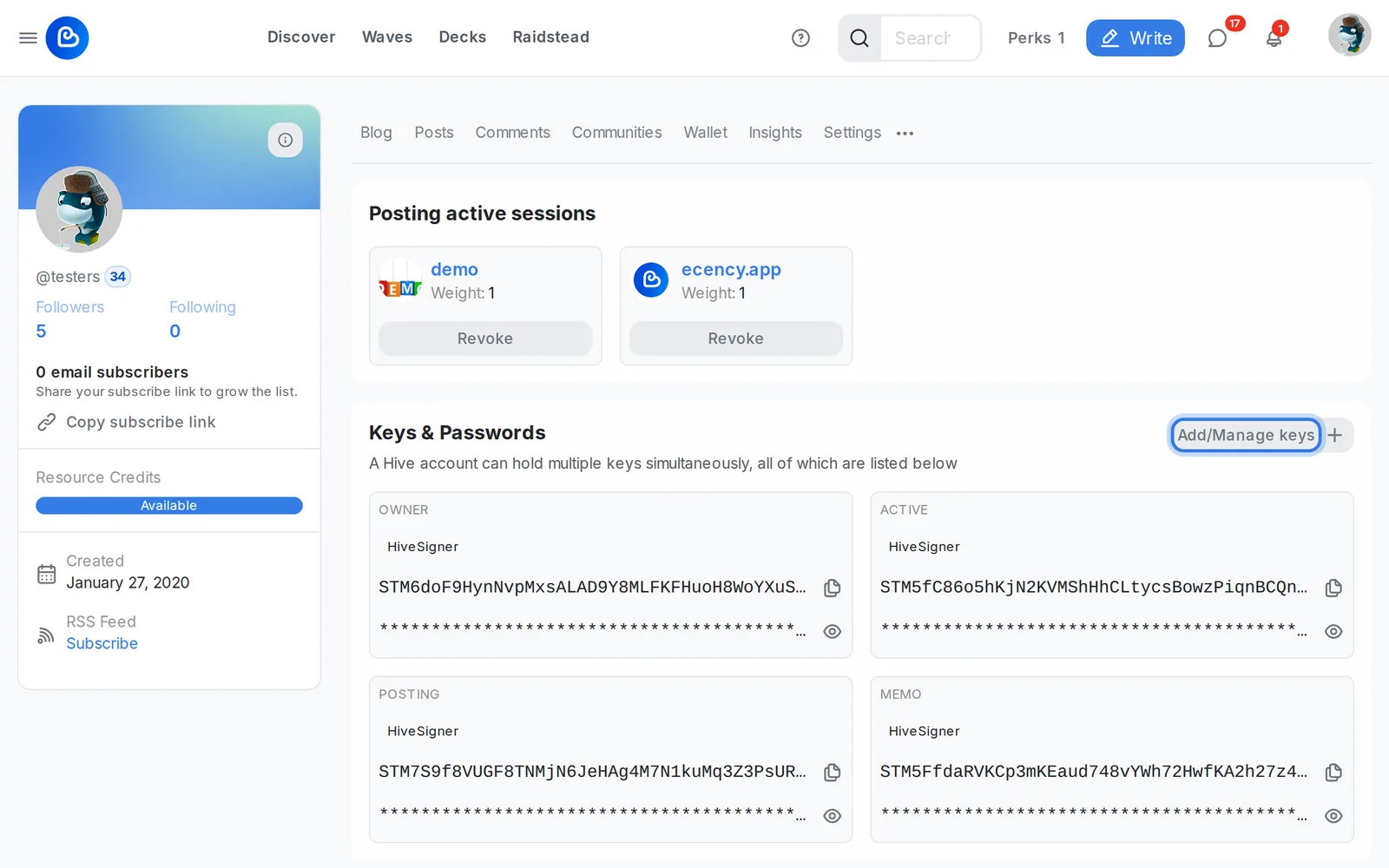
View your keys
Section titled “View your keys”The Keys & Passwords section lists your owner, active, posting and memo keys. A Hive account can hold more than one key of each type. All of them are listed. Each key shows a badge for how it was created (master password, BIP44 seed or the extension you log in with).
Public keys are always visible. To see a private key, click the eye icon (Reveal private key) and enter your master password or seed phrase. Private keys can only be revealed with a master password or seed. Once revealed, you can copy them.
Add a new key set
Section titled “Add a new key set”Adding a new key set gives your account a fresh master password while your old keys can stay active.
- Click Add/Manage keys, then Add New Keys.
- Authenticate: enter your owner key, master password or seed phrase.
- Generate Password: Ecency creates a new master password. Save it. Clicking continue downloads a file with the new master password and all keys derived from it. You can click Regenerate to get a different one first.
- Review Keys: optionally select old keys to revoke, or choose Continue Without Revoking.
- Confirm: sign with your current owner key or master password, not the new one.
After this you can log in with either the old or the new master password, unless you revoked the old keys.
Revoke keys
Section titled “Revoke keys”- Click Add/Manage keys, then Revoke Keys.
- Select the keys to remove.
- Sign with your owner key.
You must keep at least one key for each authority. Ecency won’t let you revoke a key if that would drop an authority below its signing threshold. You can also revoke a single key with the revoke button next to it.
Revoking keys needs owner authority. Browser extensions can’t sign owner-level changes, so you need to enter your owner private key or master password for this step.
Revoke app permissions
Section titled “Revoke app permissions”The Posting active sessions section lists every account (usually an app) that has posting permission on your account, with its weight. These apps can post, comment and vote for you, but they can’t move funds or change keys.
To remove one, click Revoke next to it and sign the transaction. Logging in to Ecency with an active key, master password or seed adds posting permission for ecency.app. HiveSigner can add it when you authorize Ecency there. If you revoke it, it may be added again the next time you log in that way.
Auto-vote and voting trail services also show up here, for example steemauto for hive.vote. Revoke one to stop it from voting for you. See Leave a voting trail.
Account recovery
Section titled “Account recovery”The Account recovery section shows your Current Recovery Agent and lets you set a new one. A new recovery agent takes effect after 30 days. Recovery is only possible if your keys were changed or compromised within the past 30 days. See Account recovery.
Keep your owner key safe
Section titled “Keep your owner key safe”- The owner key (and the master password that creates it) controls everything, including changing all other keys. Store it offline and never paste it into a site you don’t trust.
- Use your posting key or a signer for everyday use. Only bring out the owner key for key changes and recovery.
- Ecency will never ask for your seed phrase or master password in a message.
- If you think a key leaked, add a new key set and revoke the old keys as soon as you can.