
Chats
Send direct messages, start group chats and join community channels on Ecency, on the web and in the mobile app.
Ecency Chats lets you message other Hive users, talk in small groups and join community channels. It is built on the open-source Mattermost chat platform and uses your Hive account, so there is no separate sign-up. You need to be logged in to use it.
Where to find it
Section titled “Where to find it”- Web: click the chat icon in the top navigation bar, or go to ecency.com/chats.
- Mobile: tap Chats in the bottom tab bar.
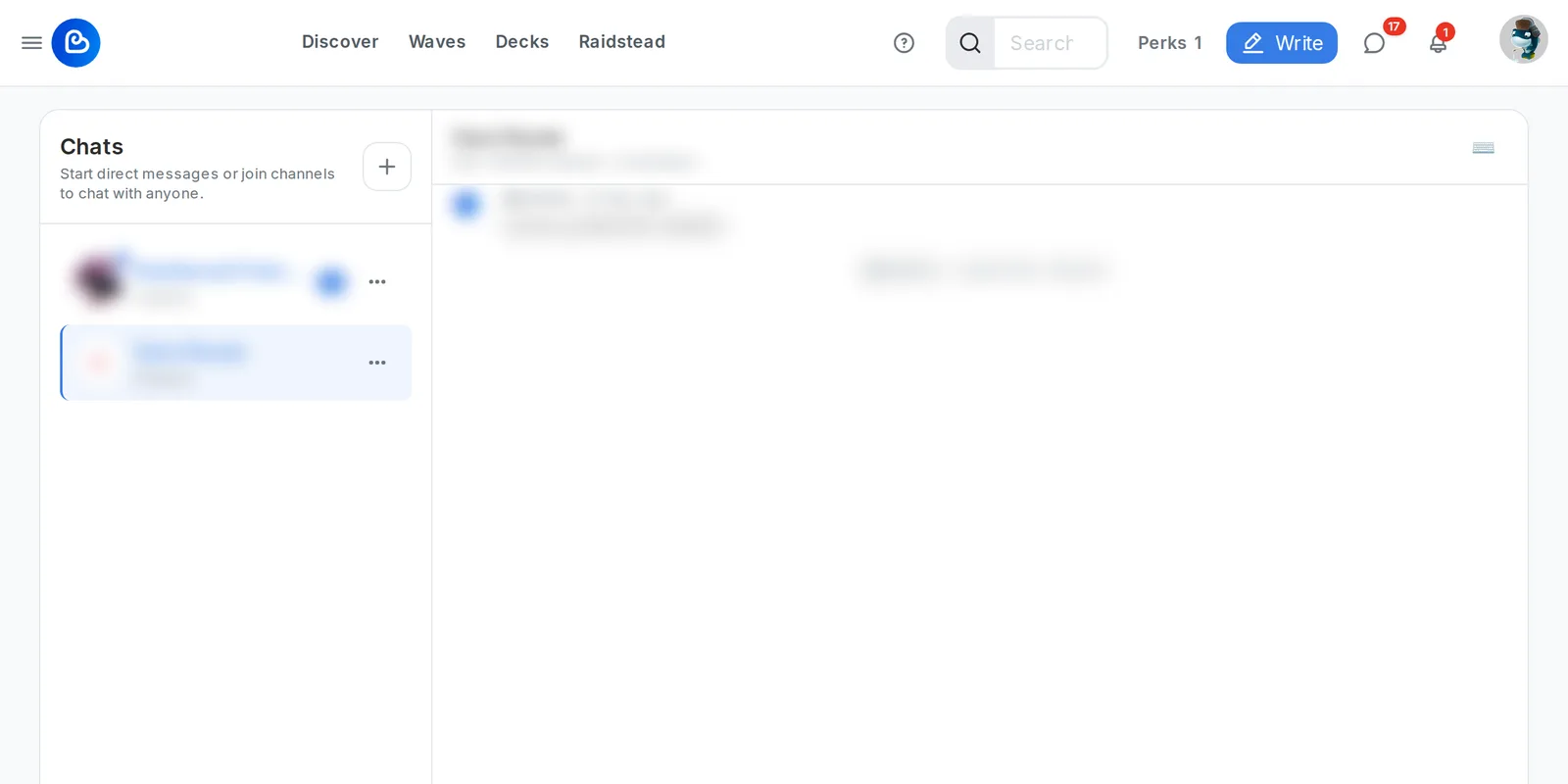
Your conversations are the same on both, so you can start a chat on the web and continue it on your phone.
Start a conversation
Section titled “Start a conversation”On the web, open the chat list and use the search box (Search people, channels, and messages). From there you can:
- Start DM: search for a username and open a one-to-one conversation.
- New group: pick 2 to 7 other people and click Start group.
- Join a channel: channels you can join appear under Joinable channels. Click Join.
In the mobile app, use the search bar on the Chats screen to find people and channels. Creating and renaming groups on mobile is coming in an upcoming app release; for now, use the web app for that.
The first time someone new messages you, Ecency shows a “stay safe” warning banner. Never share passwords or private keys in chat and be careful with links from people you don’t know.
Community channels
Section titled “Community channels”Communities can have their own public chat channel. When a community has one, a Community chat button appears on the community page. Click it to open the channel and join the conversation.
Ask Esie
Section titled “Ask Esie”Message esie or mention @esie in a channel to get answers from Ecency’s AI helper. See Esie.
Ecency channels
Section titled “Ecency channels”- Town Square: the general Ecency channel. Ask questions, get help from the team and community, and say hi.
- Post sharing: share a link to your post with a short description to get more attention from other readers and communities. Keep questions for Town Square.
Messages, replies and threads
Section titled “Messages, replies and threads”Hover over a message on the web (or long-press it on mobile) to see its actions:
- Reply to a message, or Open thread to read and continue a threaded conversation in a side panel.
- Add reaction with an emoji. Click a reaction to add yours, or use See who reacted on the web to see the list.
- Edit or Delete your own messages. Community channel moderators can also delete messages.
- Copy link to a message, or Translate it into another language.
- Pin message to keep it at the top. In DMs and groups any member can pin; in public channels only moderators can. Open Pinned messages from the channel header to see them.
The message box supports emoji, GIFs, image attachments and @mentions. On the web, click the keyboard icon in the channel header to see all keyboard shortcuts.
Groups
Section titled “Groups”The header of a group chat shows its members. The person who started the group can Rename it (up to 64 characters). Everyone in the group sees the new name. Leave the name empty to show the members’ names instead.
Muting, favorites and leaving
Section titled “Muting, favorites and leaving”From a conversation’s menu in the chat list you can:
- Mute channel to stop it from alerting you. A muted icon shows next to it.
- Favorite channel to keep it at the top.
- Mark as read to clear its unread count.
- Leave channel or Leave conversation.
Unread messages are counted in the chat list and on the chat icon in the navigation bar.
Who can message you
Section titled “Who can message you”You decide who can send you direct messages. On the web, open Settings from your profile menu and find Chat Privacy. The mobile app has the same option in its settings. Choose one of:
- Everyone
- Only people I follow
- No one (disable DMs)
If someone’s settings don’t allow your message, Ecency tells you, for example “Only accepts DMs from people they follow”.
Is chat private?
Section titled “Is chat private?”It depends on the kind of chat:
- Direct messages and groups are private to their members. Other users can’t see them in chat. Like any online chat, messages are stored on the chat service, so the people who run it may be able to access them. Never share passwords or private keys in chat.
- Community channels are public. Anyone who joins the channel can read its messages, including older ones. Treat them like a public post.
Your chats are not posted to the Hive blockchain, so they don’t appear on your blog or in block explorers.
Esie keeps a copy of your conversations with it for 30 days. Send !forget to Esie in a direct message to delete Esie’s copy sooner. Your messages stay in the chat until you delete them yourself. See Your data.
Posting pauses
Section titled “Posting pauses”To protect everyone from spam, chat can pause an account from posting for a while if it sees unusual activity. During a pause you can still read chat. The notice tells you roughly when posting unlocks again.
For developers
Section titled “For developers”If you want to add Ecency chat to your own app, see Chats for developers.