
Login methods
Every way to log in to Ecency on the web and in the mobile app, what each method keeps on your device and which one to choose.
You can log in to Ecency with a signer (a browser extension, wallet app or HiveSigner) or by typing a key. We recommend a signer such as Hive Keeper, Hive Keychain or HiveSigner: your private keys stay in the signer. Ecency only asks it to approve each action.
Log in on the web
Section titled “Log in on the web”- Click Login on ecency.com.
- Type your Hive username in the Username field.
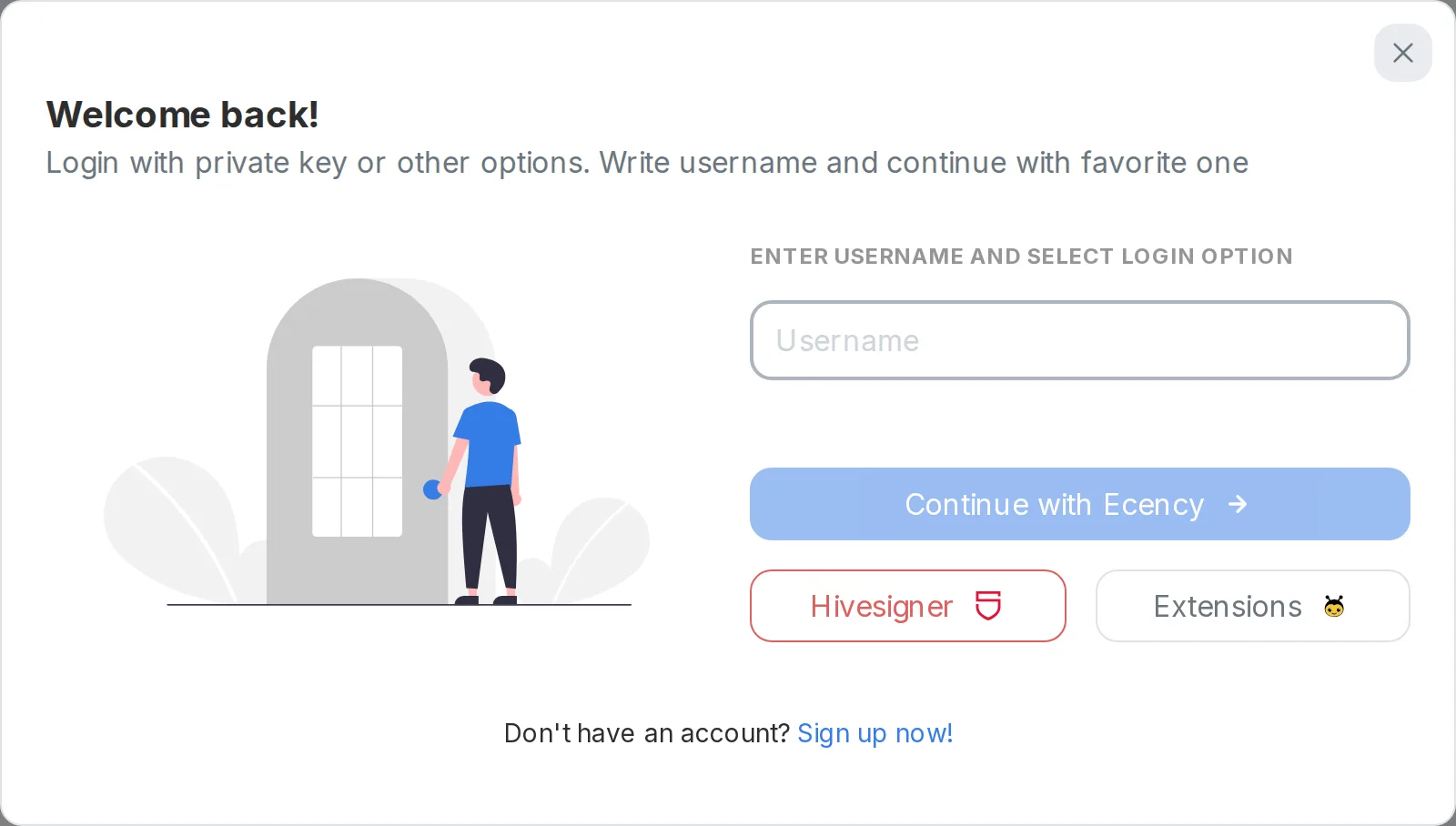
- Pick one of the options below.
Browser extensions
Section titled “Browser extensions”Click Extensions. Ecency detects which Hive extensions you have installed:
- Hive Keeper: Ecency’s own extension, recommended for the best experience.
- Hive Keychain: a popular Hive wallet and signing extension (Chrome and Firefox).
- Peak Vault: a lightweight wallet extension by PeakD.
With more than one installed, Choose Extension asks which to use and Ecency remembers it for that account. With none installed, you get install links. The extension signs a login message with your posting key; Ecency never sees the key.
Extensions only work in desktop browsers. In a mobile browser the button becomes Keychain Mobile, which opens the Hive Keychain app to approve the login.
HiveSigner
Section titled “HiveSigner”Click Hivesigner, approve the login on hivesigner.com. You are then sent back to Ecency.
MetaMask (Hive Snap)
Section titled “MetaMask (Hive Snap)”If MetaMask is installed, a Sign with MetaMask button appears. It signs with the Hive Snap, so the keys in the Snap must match the account (for example, one created with that MetaMask wallet). If MetaMask asks you to update the Snap, accept and try again.
Key, master password or seed file
Section titled “Key, master password or seed file”- Click Continue with Ecency.
- Enter your password / private key / seed, or click Use seed file to pick the 12-word seed file you saved at signup.
- Complete the captcha and click Login.
Posting key, active key, master password and 12-word seed all work. Owner keys don’t. With an active key, master password or seed, Ecency adds posting permission for ecency.app to your account if it is missing, so you can post and vote without a prompt each time.
HiveAuth
Section titled “HiveAuth”On the web, HiveAuth appears as Sign with HiveAuth when an action needs approval. Match the request ID on screen in your wallet app.
Log in on the mobile app
Section titled “Log in on the mobile app”Open the app and tap Login. You can:
- Enter your username and password / private key, then tap LOGIN.
- Tap Login with Hivesigner.
- Tap HiveAuth / Keychain to approve the login in a HiveAuth wallet or the Hive Keychain app.
Log in from the web with a QR code
Section titled “Log in from the web with a QR code”If you are already logged in on the web, you can move that login to your phone:
- On the web, open the side menu and choose Log in to Mobile.
- Read the warnings and click I understand, reveal QR code.
- In the mobile app, open the side menu, tap QR Scan and scan the code.
- Confirm the account switch in the app.
The QR code carries your login session, not your private keys. Still, treat it like a password: don’t scan it in public, don’t screenshot or share it. Turn off screen recording first.
What each method keeps
Section titled “What each method keeps”| Method | What Ecency keeps |
|---|---|
| Extension, Keychain Mobile, MetaMask, HiveSigner | A login session only. Keys stay in the extension or app. |
| Posting key | The login session and your posting key, saved in this browser. |
| Master password or seed | The session and the derived posting key in this browser. |
| Active key, master password or seed | The active key is also held in memory for the open tab, until you close or reload it, or leave it unused for two hours. |
| Mobile password or key | Saved encrypted on your device. Use HiveSigner if you prefer not to save it. |
Multiple accounts and switching
Section titled “Multiple accounts and switching”On the web, the login window’s My users list shows every account you logged in to. Click one to switch, reorder the list or remove accounts. To add an account, log in again with another username.
In the mobile app, open the side menu and tap Add Account, then switch between accounts from the same menu.
On shared computers, log out with Logout & Clear login data to remove saved login data from the browser.